
Getting Better Booleans In Carrara

Introduction
A common complaint among Carrara users are problems with boolean operations (cutting one shape with another). In creating "After the Expedition", I had cause to investigate problems with boolean operations in Carrara and I found some solutions and some causes.
Booleans are good for making holes in one thing using another. They are the drills and routers and saws of 3D, and, as such, are often critical to the success of object creation.
Carrara does not have as much need for booleans and some pure vertex systems do - holes and scuplting can often be managed to quite complex levels without any need to intersect, union or subtract.
But when you need to make windows and other holes, there is no substitute.
Bad Booleans
If you've done it - it's happened to you. Partly executed subtractions, weirdly welded vertexes that can't be removed or disentangled.
|
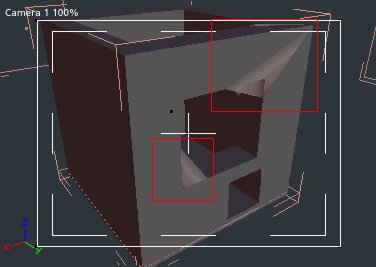
This shows two of the most common failures of booleans... The lower red rectangle shows an area not cut out. The upper one shows an impossible vertex connection and a cutout failure. |
 |
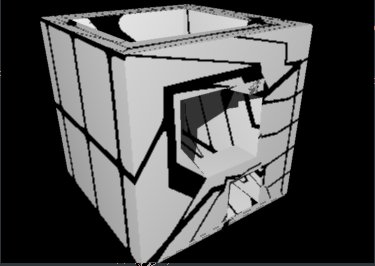
| Here you can see the effect on texturing of these anomalies. This is an 8 x 8 tile texture. You might not notice the effect with a cellular or marble texture, but don't try bricks. |
 |
|
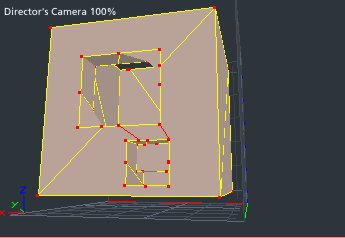
Double clicking on the object shows that it is now a vertex object. This is necessary, because simple geometry objects and spline objects can't be cut into. So Carrara converts the object to a vertex object and then performs the boolean. But you'll notice there are a lot of vertices that are not connected by edges. Apparently, when the object is cut, a lot of vertices are created, but not connected into triangles. When the object is rendered, the renderer perhaps attempts to use the sequence of the vertices to try to decide how they are connected, but that doesn't work properly. So we use Selection | Triangulate Polygons to connect them explicitly... |
 |
| Here we see what happens after "Triangulate Polygons". The anomalies seem to be gone. |
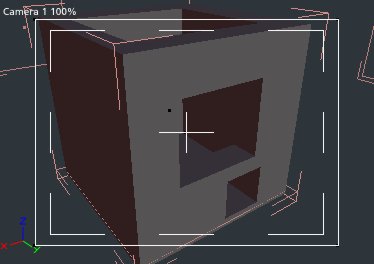 |
| Here you can see that the vertices now seem properly connected. |
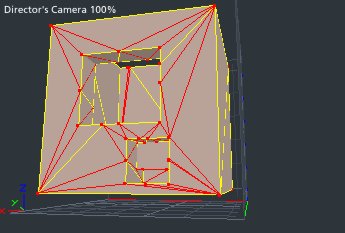 |
|
Unfortunately, this is not enough to fix the texture mapping... There is no sure way to do that. Sometimes you can attain a degree of healing by exporting as a .dxf and reimporting. I believe .dxf does not use a UV coordinate system, and exporting to that and reimporting sometimes forces Carrara to recompute the coordinates, thus correcting them - but not always. It also has not eliminated all of the errors. Some of the vertices on the inside of the lower opening were not properly resolved, so there are still improperly connected vertices. However, they can be dealt with to some extent by deleting the edges. Note that some errors will not respond well to deleting edges or vertices. |
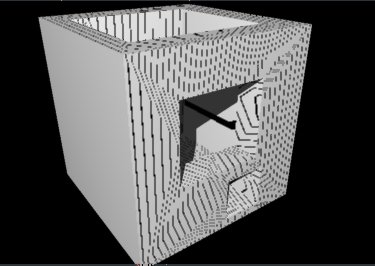 |
|
The more holes you cut into an object, even when using this technique, the more damaged the object may become. This is probably due the triangles becoming long and narrow. Solve this problem to the extent possible by converting each object and cutter to the vertex editor before cutting. Subdivide to some reasonable level. Then use the objects in a 3D Boolean. You will find the lattice structure of the resulting vertex object is somewhat more regular. And in all of the cases I have tried so far with cubes, there have been no artifacts.. However, the UV coordinates are still damaged and certain kinds of texture mapping will not work - at least not when mapped using the UV (parametric) mapping... |
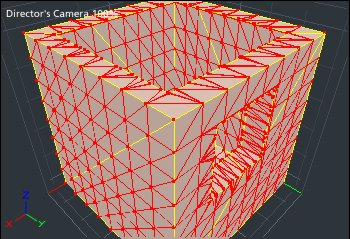 |
| But if you use some variation of projection mapping, even complex objects can give a reasonably useful appearance... |
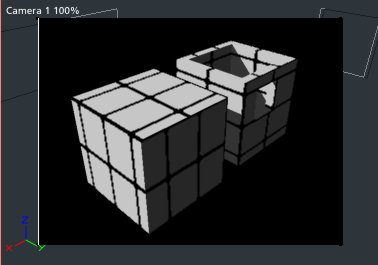 |
Using Transparency to Simulate Booleans
To some extent, you can overcome the problem with booleans by avoiding them
altogether. The Carrara shader type "Layers List" allows you to apply
shaders with various attributes (including transparency) to the object surfaces.
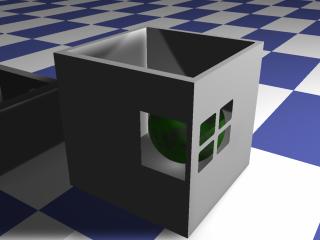 |
|
Layers List "holes"
|
This shows an object with "holes" made with a Layers list shader. The hole on top and on the right are multi channel shaders with nothing but value 100% in the transparency channel and with "No light interactions" checked. The "holes" on the left are a single layer that is the same but with a "Tile" applied to the transparency channel.
Note that you must have the rendering option "Light through transparency" checked for this to work effectively.
Note that there are some shadow anomalies at the top of the cube. These are not a function of the use of soft shadows or environment lighting
This image also shows that the "holes" do not check with each other such that the thickness of the "rim" around the cube is not carried out through the windows.
Also note that the transparency of the layers list object is stopped when it reaches a face.
Finally, note that this technique does not work at all if you have applied a boolean operation to the object, as that completely disrupts the UV mapping of shaders, and consequently of components of the layers list. However, if you use this technique exclusively, you will be able to successfully use all sorts of textures as holes on your objects.
In summary...
To safely cut cubical objects (and perhaps others as well...)
- Turn the object and the cutter into vertex modeler objects using "Convert to Other Modeler" in the Modeling room.
- In the vertex modeler for the object and the cutter, use Edit | Select All and Selection | Subdivide. Repeat the subdivide a number of times. Note however, that this will increase the complexity of the object and may increase rendering times.
- Use the Arrange room 3D Boolean operation.
- Return to the modeler room for the resulting object, use Edit | Select All and Selection | Triangulate Polygons
- If the shader appearance is noticably damaged, try changing the shader mapping to a flat, cylindrical, or spherical, whichever comes closest to the object geometry.